
MFA (Multi Factor Authentication) - Email Installation
Multi-Factor Authentication
- Please follow these instructions to set up Multi-Factor Authentication for your @anderson5.net account. This is to help protect you, as well as the District.
- If you already use Duo Mobile for authentication, you do not need to do this
- The best and safest option is to use the Microsoft Authenticator App via your Smartphone.
- On your PC, navigate to https://mysignins.microsoft.com/security-info
- You should now be at a sign-in screen
- Sign-in with your A5 credentials
- You should now be on a page called “My Sign-Ins”
- In the left-hand navigation, select “My Account”, then security info
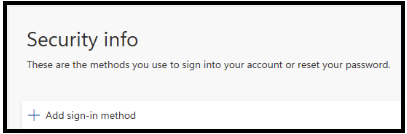
- Click on the plus beside “Add sign-in method”
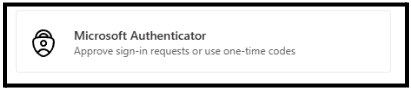
- On the pop-up screen, choose Microsoft Authenticator
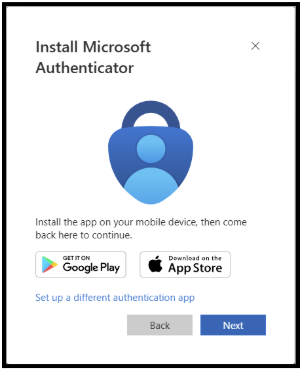
- You will now be asked to install Microsoft Authenticator on your phone
-
-
-
-
- Navigate to the PlayStore/AppStore on your phone, download Microsoft Authenticator
- Open the app, allow notifications, accept the privacy policy, Add work or school account, scan QR code
-
-
-
- On your PC, click next until you get a QR code, scan the code with your phone
- On your PC, you should get a number to enter into the prompt on your phone
- You should now see a confirmation screen, click ok
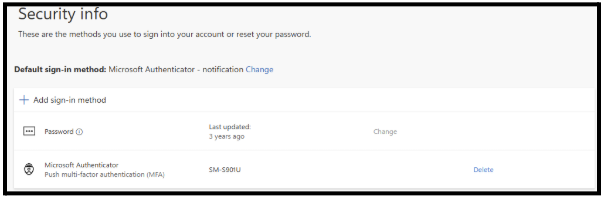
- On the Security info screen, you should now see Microsoft Authenticator listed
- Your account is now protected - THANK YOU!
Never approve a sign-in that you are not requesting!